

Downloading Sets

Click the download button on any set to open the download window. You choose which images to apply, and aura saves the set so it can keep it up to date.
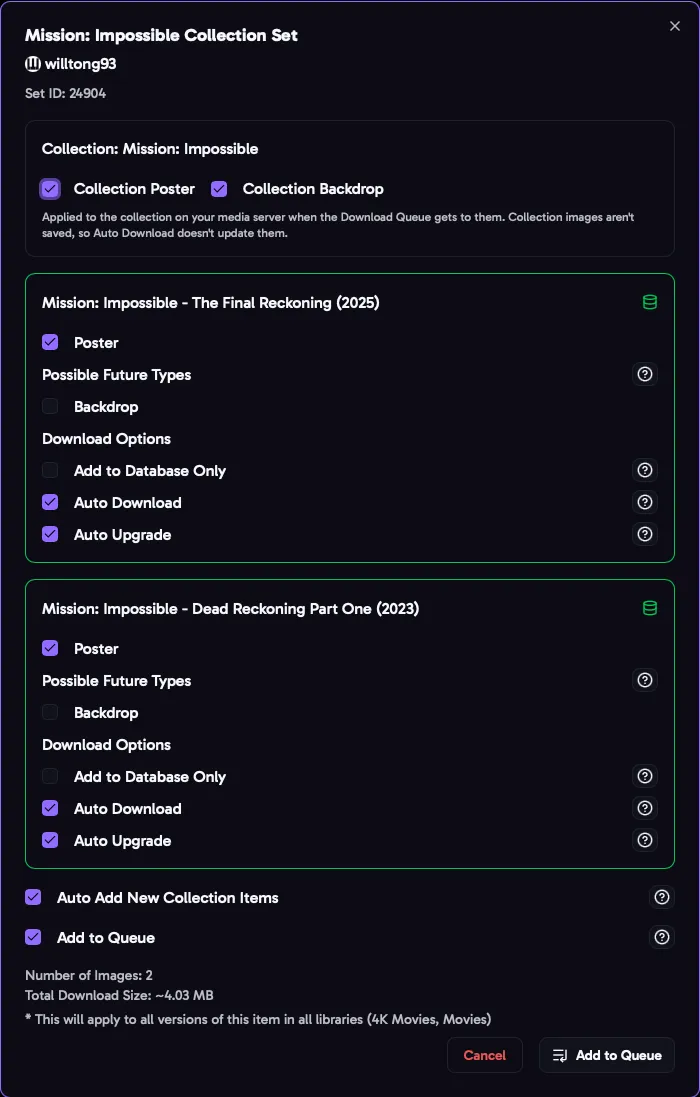
Choosing Images
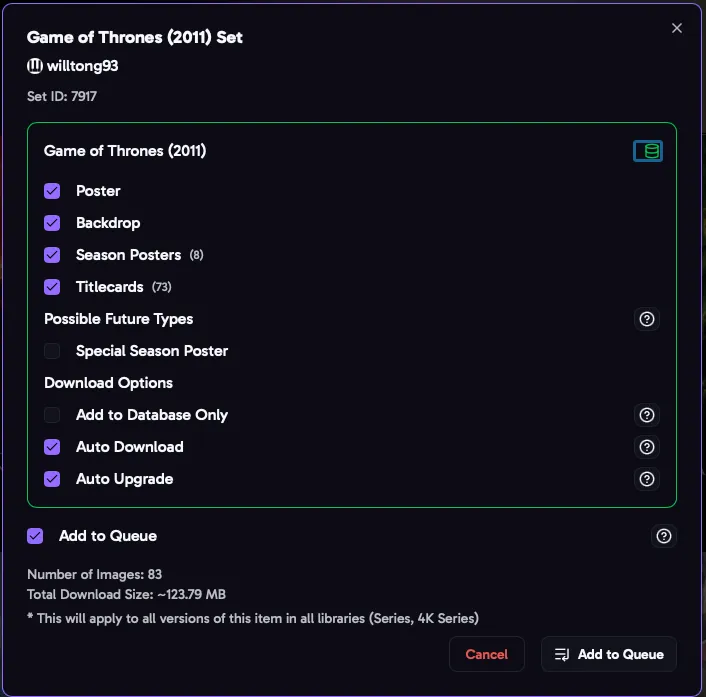
Section titled “Choosing Images”Each movie or show in the set has its own options. Click an image type to turn it on or off:
- Movies and collections: Poster and Backdrop.
- Shows: Poster, Backdrop, Season Posters, Special Season Poster (season 0) and Title Cards.
Your download defaults are turned on to start with. The window shows how many images will be downloaded and their total size.
- Already downloaded: a type you’ve already downloaded from another saved set is marked, so you don’t replace it by mistake. If the item is already saved, the window lists its other sets.
- Possible future types: a type the set doesn’t have yet, like title cards for a new season, can still be selected. aura saves it, and Auto Download downloads it when the creator adds it.
Download Options
Section titled “Download Options”Auto Download
Section titled “Auto Download”aura checks the set for new and updated images and downloads them, for example title cards for a new season. The Auto Download job runs every night by default; see Jobs. On by default.
Auto Upgrade
Section titled “Auto Upgrade”Lets aura replace this set’s images with those from a higher ranked favorite creator, when Automatically Upgrade Sets is on. Images the favorite creator doesn’t have stay with this set. Turn it off to keep this set. Turn on Auto Upgrade by Default to have it checked to start with.
Add to Database Only
Section titled “Add to Database Only”Saves the set without downloading anything. Use it for sets you’ve already applied some other way, so aura knows about them and can keep them up to date.
Auto Add New Collection Items (collection sets)
Section titled “Auto Add New Collection Items (collection sets)”When a movie is added to the collection later, aura downloads its images from this set. Turn on Auto Add New Collection Items by Default to have it checked to start with.
Collection Images
Section titled “Collection Images”A collection set on a movie’s page can also have the collection’s own poster and backdrop. If the collection is on your media server, the download window shows a row for it at the top, for example Collection: Toy Story, with Collection Poster and Collection Backdrop. They’re checked to start with when they’re in your Download Defaults.
- They’re applied to the collection on your media server, after the movies. With Add to Queue on, they’re added to the Download Queue as their own entry, shown with the collection’s name and poster.
- They aren’t saved, so Auto Download doesn’t update them.
- On a movie’s page, the collection’s images come first in the set, then the movie the page is for, then the rest of the collection, newest first.
Add to Queue
Section titled “Add to Queue”Adds the set to the Download Queue instead of downloading it while you wait. The queue downloads in the background, one set at a time, so you can close the window and queue up lots of sets quickly.
Downloading
Section titled “Downloading”Click Download. The window shows each image’s progress, and any that fail. Click Retry to try the failed ones again. When it’s done, the set appears in Saved Sets.
Reset Form puts the options back to how they were when the window opened.