

Media Item

A movie or show’s page has its details at the top, and every MediUX set for it below.
Details
Section titled “Details”- The poster, backdrop, title, year, ratings and summary.
- Movie Details: the file path, file size and duration. For a show, how many seasons and episodes your media server has.
- Other libraries that have the same movie or show. Click a library to open the item there.
- If the item has saved sets, a link to it in Saved Sets.
Actions
Section titled “Actions”The Actions menu has:
- Refresh Metadata: asks your media server to refresh the item’s metadata. For a show, choose which seasons to refresh.
- Manual YAML Import: paste a set’s YAML from MediUX to apply its images. Validate YAML checks it before you import.
- View Current Images: shows the images on your media server right now.
- View in Saved Sets: opens the item in Saved Sets.
- Ignore options, see Ignoring Items.
On Plex and Silo, you can also rate the item. The rating is set on your media server.
Every MediUX set for the item is listed, with its images in a carousel. Sets by creators you follow come first.
- Click the set’s name, or the magnifying glass, to open the Set page.
- Click the creator’s name to open their creator page.
- Dimmed images are for items that aren’t in your library, including a collection’s own poster and backdrop when the collection isn’t on your media server.
- Click the download button to apply the set’s images. You can mix and match: apply the poster from one set and the title cards from another.
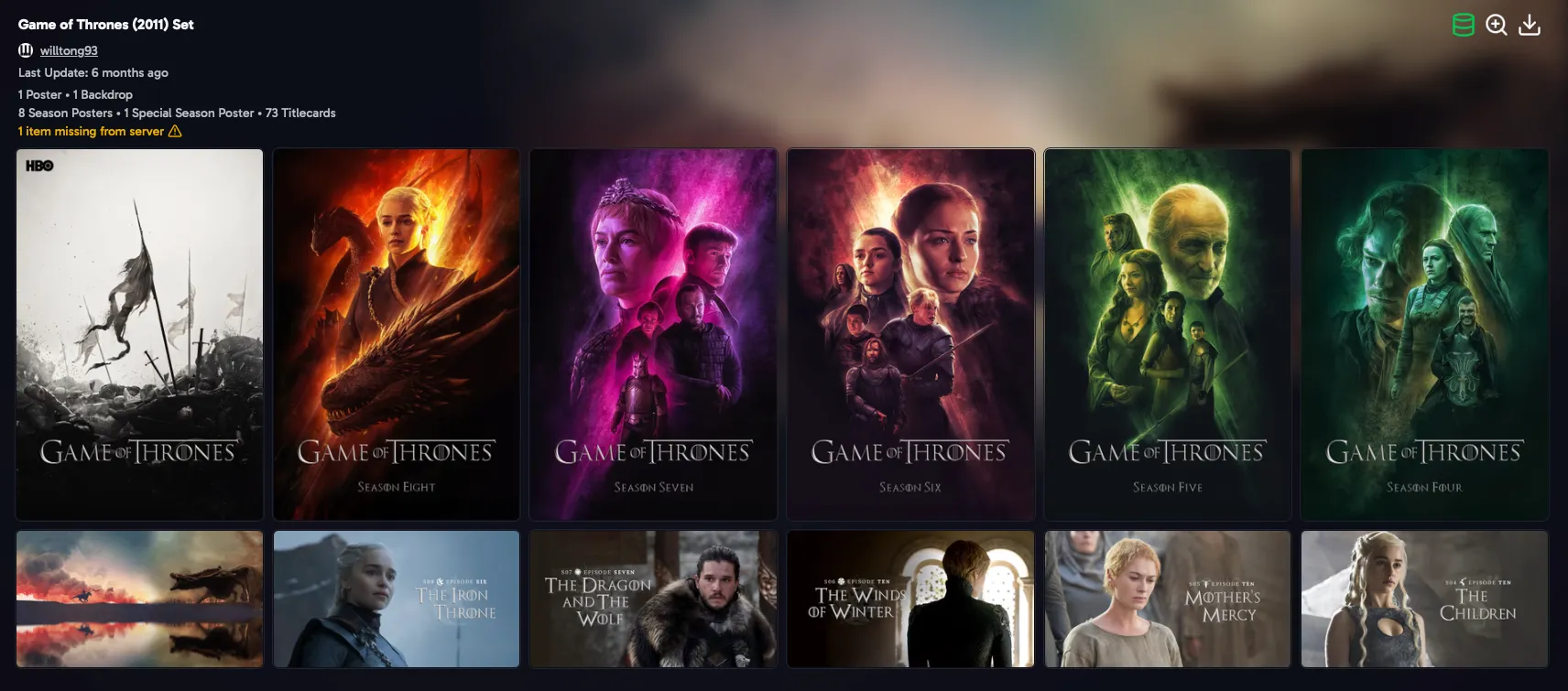
Movies can also have collection sets, which cover every movie in a collection. They’re listed with the movie’s sets.
- Date Updated: the most recently updated sets first.
- User Name: by creator.
- Popularity: the most popular sets on MediUX first.
- Number in Collection (movies): collection sets with the most movies first.
- Number of Seasons and Number of Titlecards (shows): the most complete sets first.
Preferences & Filters
Section titled “Preferences & Filters”- Download Defaults, Only Show Selected Image Types, Add to Queue by Default and Add to Database Only by Default: the same as in User Preferences. Changing them here changes them everywhere.
- Show Hidden Users: also show sets from creators you’ve hidden on MediUX.
- Only Show Sets with Titlecards (shows).
- Show Date Modified: show when each image was last changed on MediUX.
- Languages: only show sets with images in these languages.
Ignoring Items
Section titled “Ignoring Items”Ignore an item you don’t want to find sets for, so it stops showing up in the Has Sets Available and Not in Database filters. There are three ways to ignore it:
| Option | What happens |
|---|---|
| Always Ignore | The item stays ignored until you remove it. |
| Ignore Until Set is Available | For items with no sets yet. When a set appears on MediUX, the item is no longer ignored and you’re notified. |
| Ignore Until New Set is Available | For items whose sets you don’t like. When a new set appears, the item is no longer ignored and you’re notified. |
The Handle Temp Ignored Items job checks for new sets every 6 hours. Remove Ignore Status stops ignoring the item.