

Saved Sets
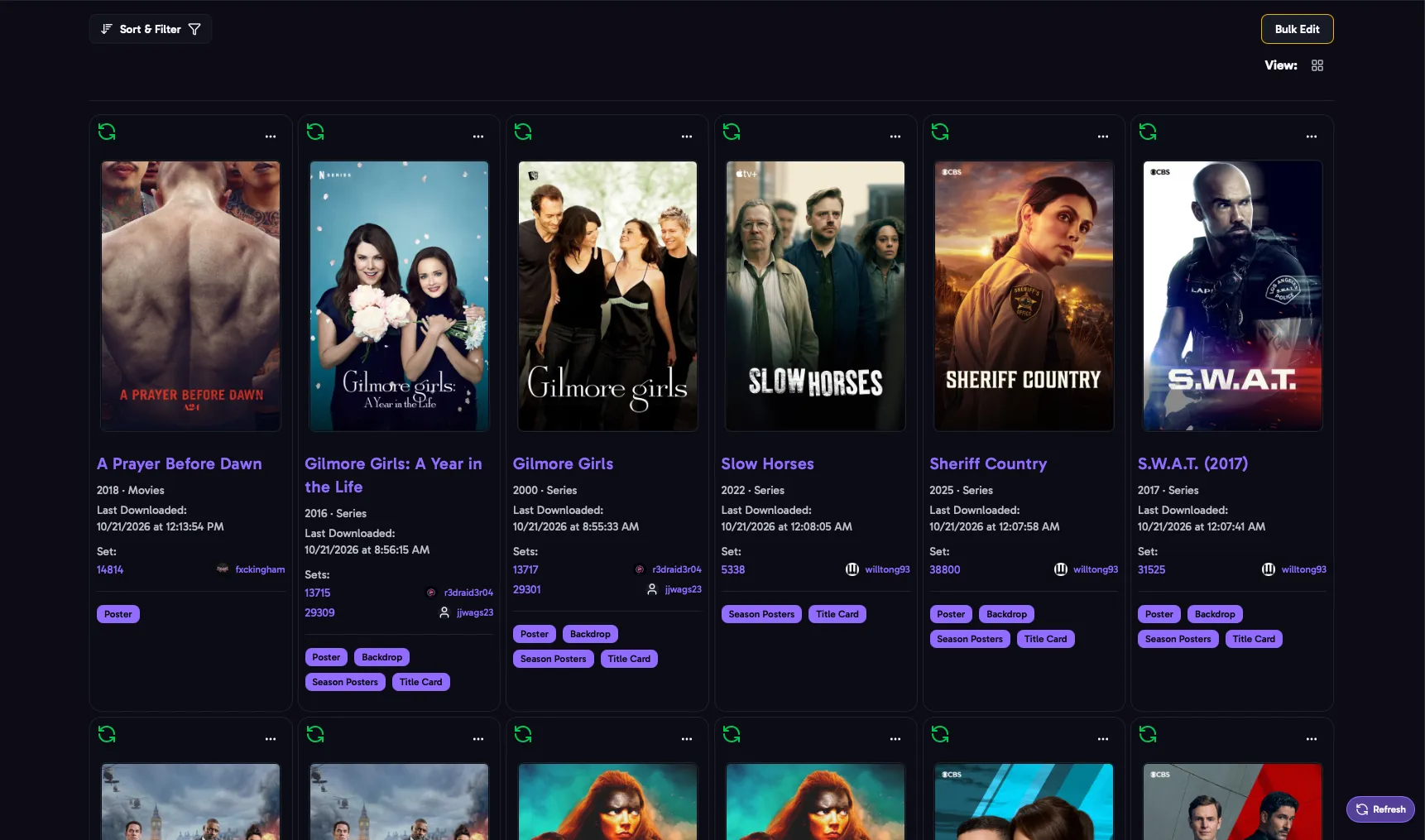
Every set you download is saved here. aura uses your saved sets to keep your images up to date: the Auto Download job checks them for new and updated images, and the Sonarr webhook and Plex websocket listener use them to apply images again.
Each movie or show can have more than one saved set, for example the poster from one set and the title cards from another.
Switch between Card View and Table View. The table shows each item’s title, year, library, when it was last downloaded, its sets and their image types.
Note: Table View is only present on Desktop screens.
Sort & Filter
Section titled “Sort & Filter”- Sort by Date Downloaded, Title, Year or Library.
- Library: which libraries to show.
- Selected Types: only sets with these image types, or with No Selected Types.
- AutoDownload: only sets with Auto Download on, or off.
- Multi Set Only: only items with more than one saved set.
- Media Item on Server: only items that are, or aren’t, still on your media server.
- Users: only sets by these creators.
Editing a Set
Section titled “Editing a Set”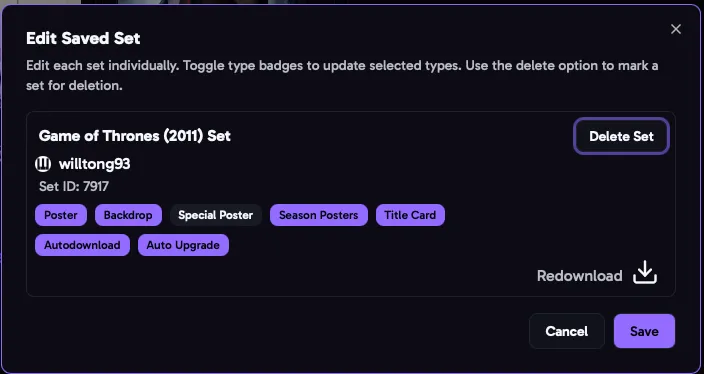
Open an item’s menu and choose Edit to change its sets. For each set you can:
- Turn image types on or off.
- Turn Auto Download and Auto Upgrade on or off.
- Redownload the set, to apply its images again. Set has updates shows when the creator has changed the set since you last downloaded it.
- Delete the set. Its images stay on your media server.
Bulk Actions
Section titled “Bulk Actions”Select items with their checkboxes, or Select All, then choose an action:
| Action | What it does |
|---|---|
| Force Autodownload Recheck | Checks the sets for new and updated images now, instead of waiting for the Auto Download job. |
| Enable Autodownload | Turns Auto Download on. |
| Disable Autodownload | Turns Auto Download off. |
| Force Redownload | Downloads and applies every image in the sets again. |
| Upgrade to Favorite Creators | Replaces sets with sets from higher ranked favorite creators. |
| Apply Labels/Tags | Applies your labels and tags to the items again. |
| Delete Selected Sets | Deletes the sets. Their images stay on your media server. |
After a recheck, Recheck Status shows the result for each item.