

Labels & Tags
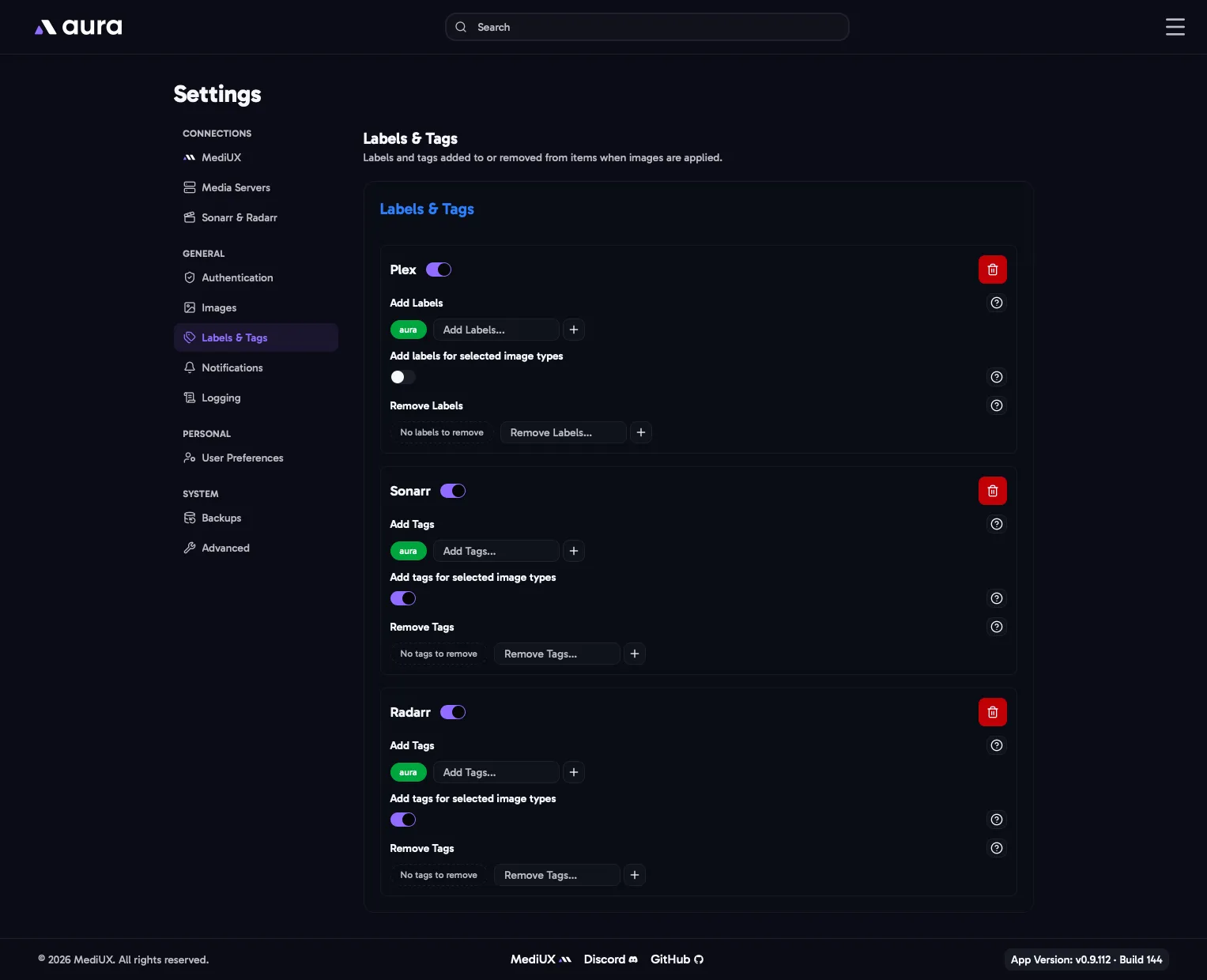
When aura applies images to an item, it can add and remove labels in Plex, and tags in Sonarr and Radarr. Use them to see which items aura has updated, or to trigger other tools. For example, Kometa can add its overlays to items with a certain label.
Add an app with Add. Plex is offered when your main media server is Plex, and Sonarr and Radarr once you’ve connected them in Sonarr & Radarr.
Enabled
Section titled “Enabled”Turn an app off to stop changing its labels or tags, without removing its settings.
Add Labels / Add Tags
Section titled “Add Labels / Add Tags”Labels or tags to add to each item aura applies images to.
Remove Labels / Remove Tags
Section titled “Remove Labels / Remove Tags”Labels or tags to remove from each item aura applies images to.
Add Labels / Tags for Selected Image Types
Section titled “Add Labels / Tags for Selected Image Types”Adds a label or tag for each type of image aura downloaded, in the format aura-<type>. Downloading a poster and a backdrop adds aura-poster and aura-backdrop, so you can see at a glance which images came from aura.
Remove “Overlay” Label Only on Poster Download (Plex only)
Section titled “Remove “Overlay” Label Only on Poster Download (Plex only)”Kometa labels the items it has added overlays to with Overlay. Removing the label makes Kometa add its overlays again on its next run, so adding Overlay to Plex’s Remove list puts overlays on the new images aura applies.
With this on, aura only removes Overlay when it downloads a poster for the item, and leaves it when it only downloads other images, like backdrops or title cards. Turn it on if Overlay is in your Plex Remove list and you only use Kometa overlays on posters.
In the Config File
Section titled “In the Config File”LabelsAndTags: RemoveOverlayLabelOnlyOnPosterDownload: true Applications: - Application: Plex Enabled: true Add: - aura Remove: - Overlay AddLabelTagForSelectedTypes: true - Application: Sonarr Enabled: true Add: - aura Remove: [] AddLabelTagForSelectedTypes: false - Application: Radarr Enabled: true Add: - aura Remove: []