

User Preferences
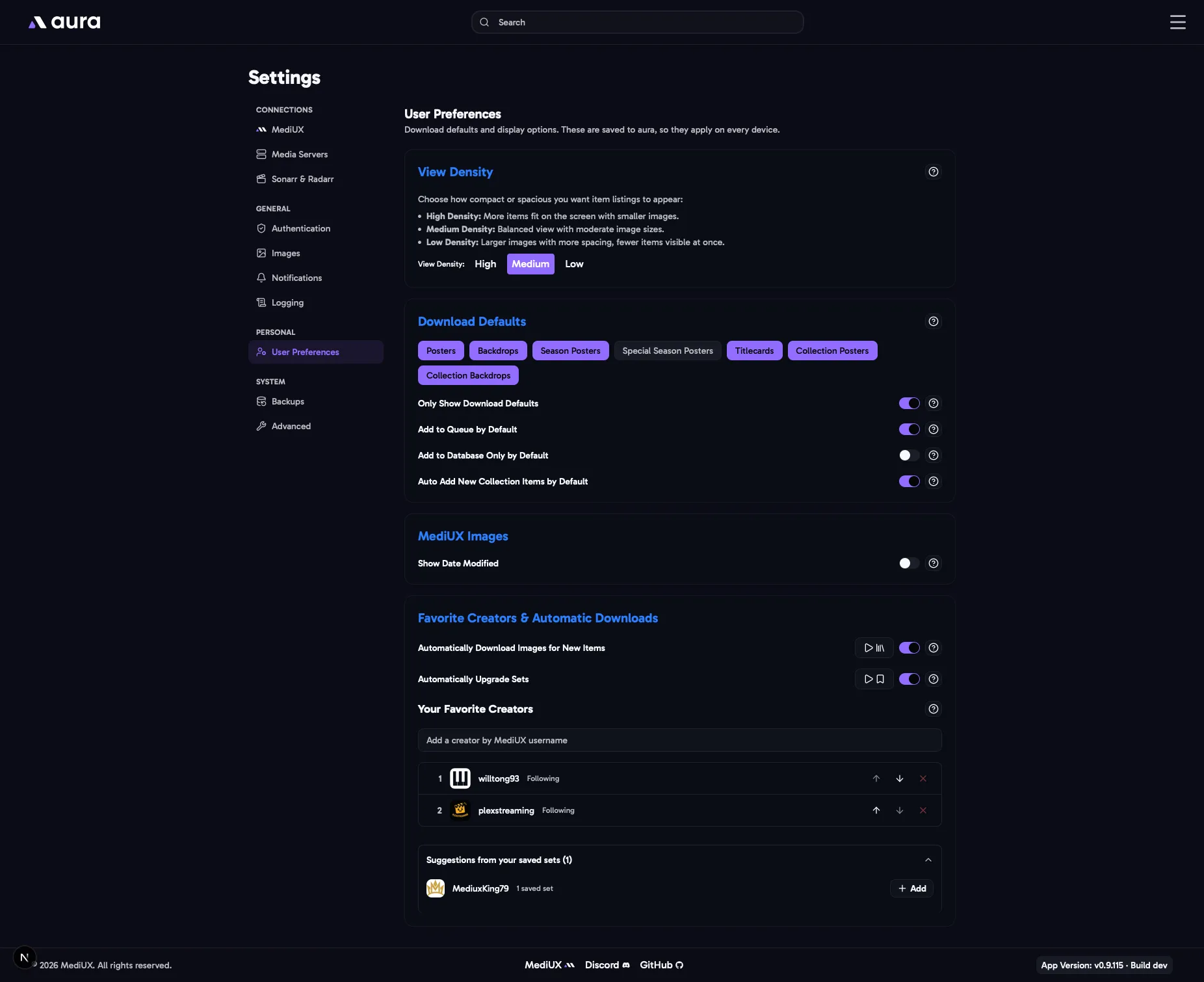
User preferences are saved in aura, not in your browser, so they’re the same on every device. Only View Density is saved separately in each browser. aura also remembers the sort and filter options you choose on each page, like Home, Saved Sets and the Download Queue, and uses them on every device.
View Density
Section titled “View Density”How large the posters are in lists and carousels.
- High: smaller images, more items on screen.
- Medium: a balance of both.
- Low: larger images, fewer items on screen.
Download Defaults
Section titled “Download Defaults”The image types that are already checked when you open the download window: Poster, Backdrop, Season Poster, Special Season Poster, Title Card, Collection Poster and Collection Backdrop. Click a badge to turn it on or off. You can still change them for each download.
Collection Poster and Collection Backdrop are the collection’s own images, offered for collection sets on a movie’s page.
Download defaults are also used for sets that aura downloads by itself, from your favorite creators.
Only Show Download Defaults
Section titled “Only Show Download Defaults”Only shows sets that have at least one of your download default image types. For example, if your only default is Title Card, sets without title cards are hidden. You can also change this in the filters on a Media Item page.
Add to Queue by Default
Section titled “Add to Queue by Default”Checks Add to Queue when you open the download window, so sets go to the Download Queue instead of downloading straight away. You can still uncheck it for each download.
Add to Database Only by Default
Section titled “Add to Database Only by Default”Checks Add to Database Only for each item when you open the download window, so sets are saved without downloading any images. Useful if you’ve already applied most of your images some other way. You can still uncheck it for each download.
Auto Add New Collection Items by Default
Section titled “Auto Add New Collection Items by Default”Checks Auto Add New Collection Items when you open the download window for a collection set. Movies added to the collection later then get their images from the set automatically. You can still uncheck it for each download.
Auto Upgrade by Default
Section titled “Auto Upgrade by Default”Checks Auto Upgrade for each item when you open the download window, so a higher ranked favorite creator can replace the set’s images later. On by default. Turn it off to keep the sets you download as they are. It only does something while Automatically Upgrade Sets is on, and you can still change it for each download.
Show Date Modified
Section titled “Show Date Modified”Shows the date each image was last changed on MediUX, under the image.
Favorite Creators & Automatic Downloads
Section titled “Favorite Creators & Automatic Downloads”Your favorite creators are the MediUX creators whose sets you like best. aura can use them to download sets for you.
Your Favorite Creators
Section titled “Your Favorite Creators”Your favorite creators, ranked best first: rank 1 is your top creator. Use the arrows to change the order, and add a creator by their MediUX username.
Creators you follow on MediUX are always favorites. To remove one of them, unfollow them on MediUX.
Automatically Download Images for New Items
Section titled “Automatically Download Images for New Items”When a new movie or show is added to your libraries, aura looks for a set from your favorite creators, starting with your top creator. If it finds one, it saves the set and adds it to the Download Queue, using your download defaults.
The play button does the same for every movie and show already in your libraries that doesn’t have a saved set yet. On a large library that can be a lot of downloads.
Automatically Upgrade Sets
Section titled “Automatically Upgrade Sets”The Upgrade Saved Sets job checks your saved sets against your favorite creators. Each image type is upgraded on its own: when a creator ranked higher than the set’s creator has that type for the item, their set takes it over.
- Any favorite creator ranks above creators who aren’t favorites.
- Only the types the new set has move to it. The rest stay with the old set. For example, if your saved set has title cards and a favorite creator’s set only has a poster, the poster comes from the favorite and the title cards stay.
- Types in your download defaults that the item doesn’t have yet are added from a favorite creator’s set when it has them.
- The new set has Auto Download on, and is added to the Download Queue.
- The old set is removed once all of its types have moved.
- When a favorite creator adds a type later, like title cards, the next run moves it to their set.
- Sets with Auto Upgrade turned off keep their types. Turn it off in the download window, or when you edit a saved set.
The play button runs the upgrade now. You can also upgrade chosen sets from the Saved Sets page.
In the Config File
Section titled “In the Config File”UserPreferences: DownloadDefaults: - poster - backdrop - season_poster - special_season_poster - titlecard - collection_poster - collection_backdrop ShowOnlyDownloadDefaults: false ShowDateModified: false DefaultAddToQueue: false DefaultAddToDBOnly: false DefaultAutoAddNewCollectionItems: false DefaultAutoUpgrade: true AutoDownloadNewItems: false AutoUpgradeSets: false FavoriteCreators: - creator-one - creator-twoView density is saved in your browser, not the config file.