

Notifications
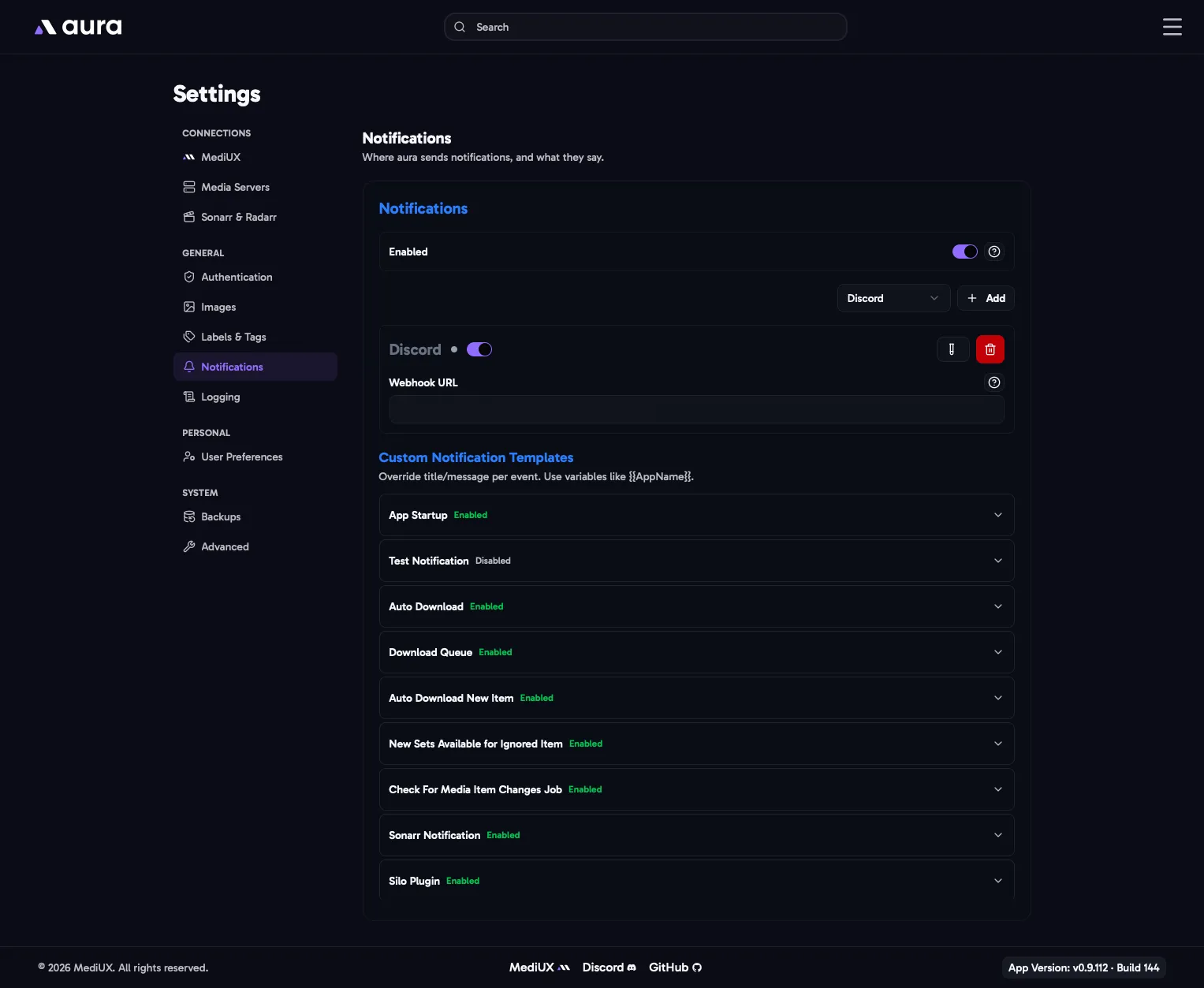
aura can send a notification when it downloads images, finds new sets, starts up, and more.
Enabled
Section titled “Enabled”The main switch for all notifications. Each provider and each notification can also be turned on or off on its own.
Providers
Section titled “Providers”Add a provider with Add, fill in its details, and click Test & Save. aura sends a test notification to check that it works. You can add as many providers as you like; every notification is sent to all of the enabled ones.
Discord
Section titled “Discord”- Webhook URL: in your Discord server, open Server Settings > Integrations > Webhooks, create a webhook for the channel you want, and copy its URL. It starts with
https://discord.com/api/webhooks/.
Pushover
Section titled “Pushover”- User Key: shown on your Pushover dashboard after you log in.
- App Token: create an application under Your Applications in Pushover, and copy its token.
Gotify
Section titled “Gotify”- URL: the address of your Gotify server, for example
https://gotify.example.comorhttp://192.168.1.10:8070. An IP address needs a port. - App Token: create an app under Apps in Gotify, and copy its token.
Custom Webhook
Section titled “Custom Webhook”-
URL: aura sends each notification to this address as a
POSTrequest with a JSON body.image_urlis only included when the notification has an image:{ "title": "Alien (1979)", "message": "Poster downloaded", "image_url": "https://..." } -
Custom Headers: headers to send with each request, for example an
Authorizationheader for a service that needs one.
Notification Templates
Section titled “Notification Templates”Each kind of notification has a template. Turn a notification off to stop sending it, or change its Title and Message. Use the + button next to a field to add a variable, such as {{MediaItemTitle}} or {{SetCreator}}. Each notification lists only the variables it supports. Include Image attaches the image, or the item’s poster, where the notification has one.
If you change a template and want the original back, click Restore Default.
| Notification | Sent when |
|---|---|
| App Startup | aura starts. |
| Test Notification | You test a provider. |
| Auto Download | The Auto Download job downloads a new or updated image for one of your saved sets. |
| Download Queue | A set in the Download Queue finishes downloading. |
| Auto Download New Item | A set from one of your favorite creators is downloaded for a new item. |
| New Sets Available for Ignored Item | An item you ignored until a set is available now has sets on MediUX. |
| Check For Media Item Changes Job | A saved item has changed or can no longer be found on your media server. |
| Sonarr Notification | The Sonarr webhook downloads title cards for an upgraded episode. |
| Silo Plugin | A set chosen in Silo with aura’s Silo plugin is downloaded. Only shown when you have a Silo media server. |
In the Config File
Section titled “In the Config File”Notifications: Enabled: true Providers: - Provider: Discord Enabled: true Discord: Webhook: https://discord.com/api/webhooks/... - Provider: Pushover Enabled: true Pushover: UserKey: YOUR_PUSHOVER_USER_KEY ApiToken: YOUR_PUSHOVER_APP_TOKEN - Provider: Gotify Enabled: true Gotify: URL: https://gotify.example.com ApiToken: YOUR_GOTIFY_APP_TOKEN - Provider: Webhook Enabled: true Webhook: URL: https://example.com/webhook Headers: Authorization: Bearer YOUR_TOKEN NotificationTemplate: AutoDownload: Enabled: true Title: "{{MediaItemTitle}} ({{MediaItemYear}})" Message: "{{ReasonTitle}}{{NewLine}}{{Reason}}" IncludeImage: trueTemplates you leave out use their defaults. The other template names are AppStartup, TestNotification, DownloadQueue, NewItemAutoDownload, NewSetsAvailableForIgnoredItems, CheckForMediaItemChangesJob, SonarrNotification and SiloPlugin.