

Sonarr & Radarr
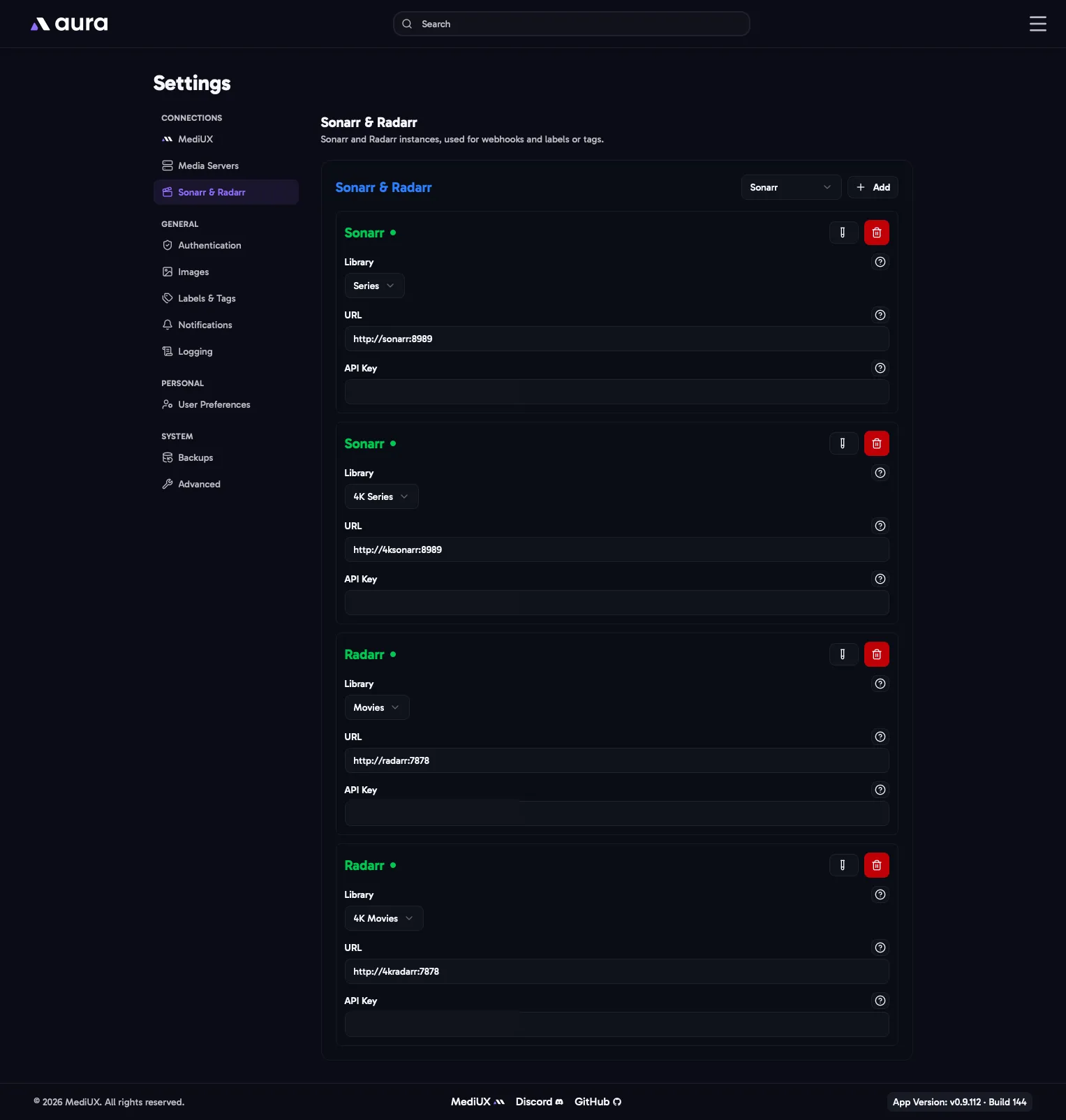
Connecting Sonarr and Radarr is optional. aura uses them to add or remove tags on your Sonarr series and Radarr movies when it applies images. Set the tags up in Labels & Tags.
Add an instance with Add, choose Sonarr or Radarr, fill in its details, and click Test & Save.
Library
Section titled “Library”The main media server library this instance manages. aura uses it to know which Sonarr or Radarr instance to tag an item in. If you have separate instances for HD and 4K, add each one with its own library.
The address of Sonarr or Radarr, including http:// or https://. If you use an IP address, include the port, for example http://192.168.1.10:8989.
API Key
Section titled “API Key”Sonarr’s or Radarr’s API key. Find it in Sonarr or Radarr under Settings > General > Security.
In the Config File
Section titled “In the Config File”SonarrRadarr: Applications: - Type: Sonarr Library: Series URL: http://192.168.1.10:8989 ApiToken: YOUR_SONARR_API_KEY - Type: Sonarr Library: 4K Series URL: http://192.168.1.10:8990 ApiToken: YOUR_SONARR_4K_API_KEY - Type: Radarr Library: Movies URL: http://192.168.1.10:7878 ApiToken: YOUR_RADARR_API_KEY